Easy File Conversion
Choose an image and download it in the format you need.
ImgParser helps you convert your files from one type to another, select the current type of your file and then select the type you want to change it to.
Choose an output format and download your image.
Choose an image and download it in the format you need.
Images are processed in your browser, without uploading them to our servers.
Export to PNG, JPEG, WebP, GIF, BMP or TIFF.
Crop, resize or apply effects before downloading.
The right choice depends on whether you need transparency, smaller files or simple color graphics.
Use PNG for graphics, screenshots and transparent areas. Its compression is lossless, but it cannot restore detail already lost in a JPEG source.
JPEG to PNGUse JPEG for photos when transparency is not needed. JPEG output can change image detail, and ImgParser places transparent pixels on a white background.
PNG to JPEGGIF stores up to 256 colors per frame, so it is usually a better fit for simple graphics than photographs. ImgParser uses a white background for transparent areas in GIF output.
PNG to GIFWebP supports transparency and lossy or lossless compression. ImgParser does not currently provide a quality slider for WebP output.
PNG to WEBP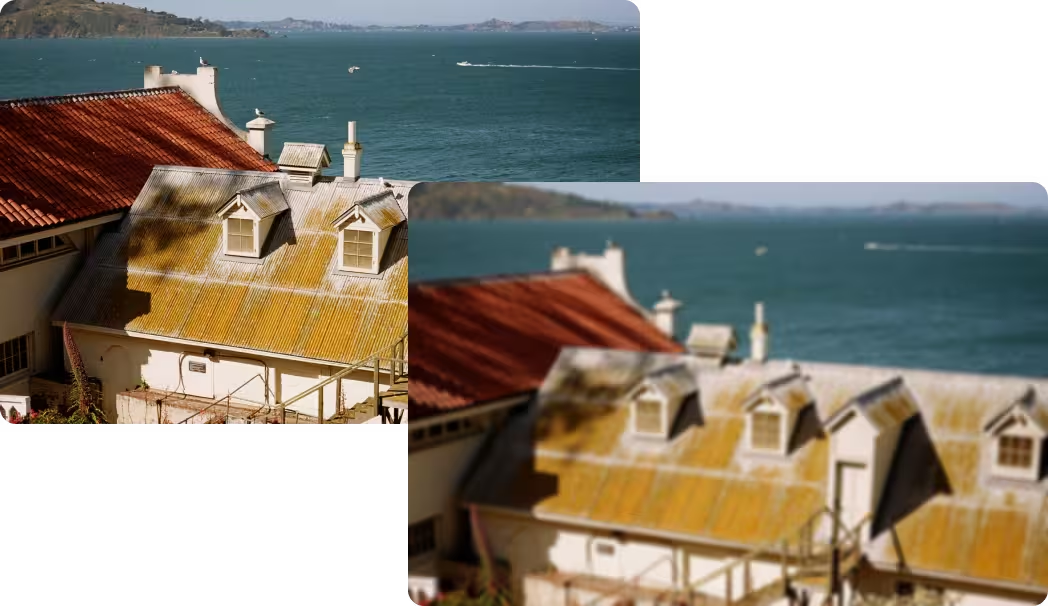
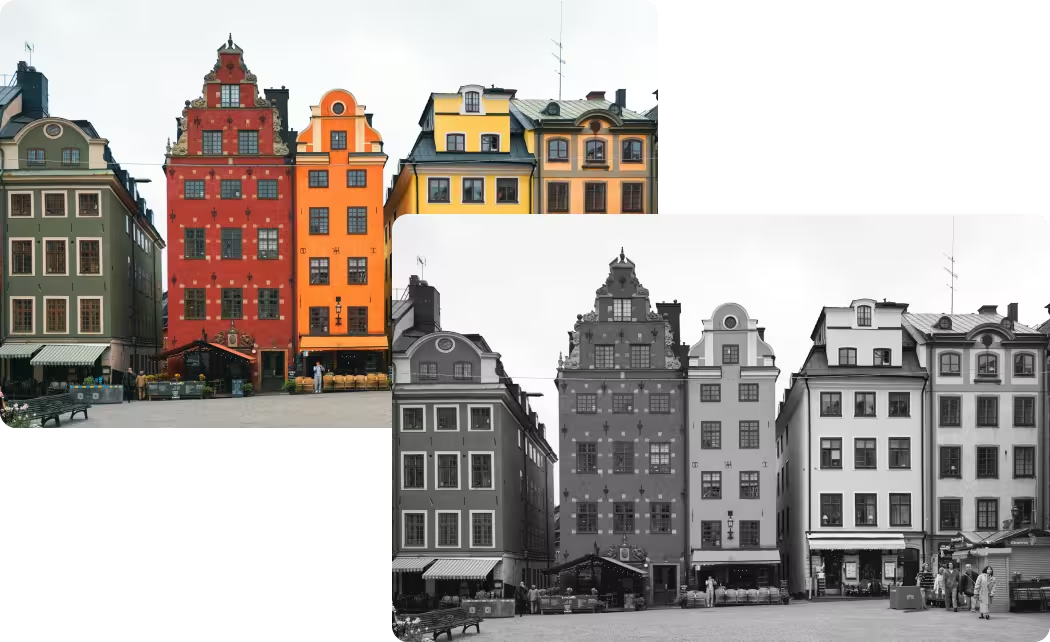
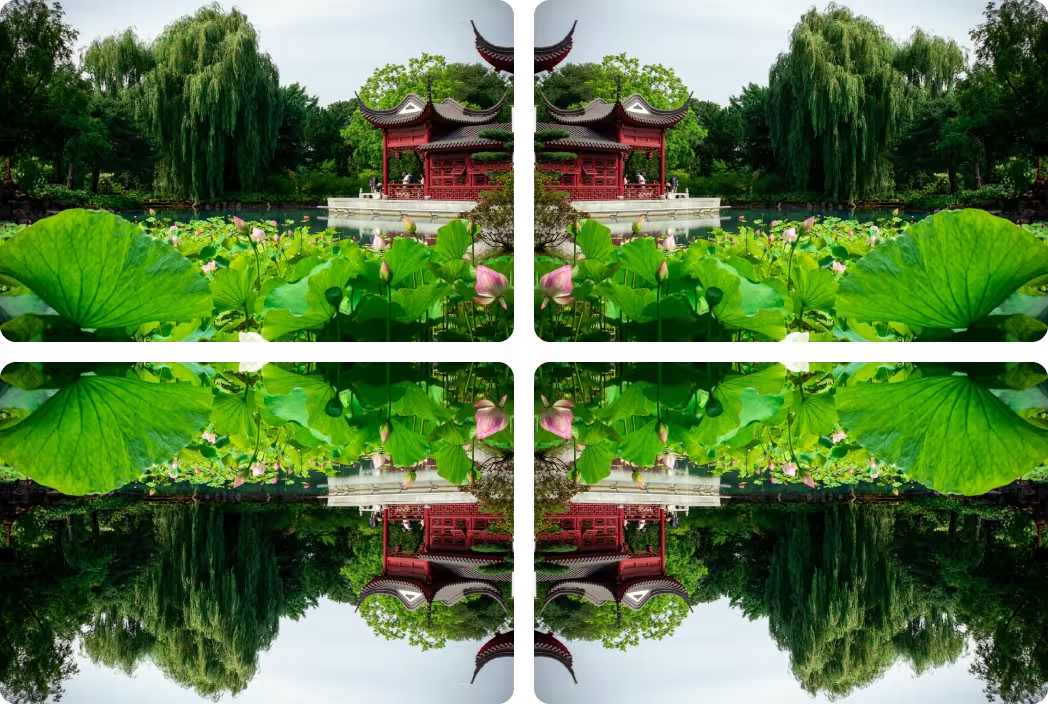

Image Graph
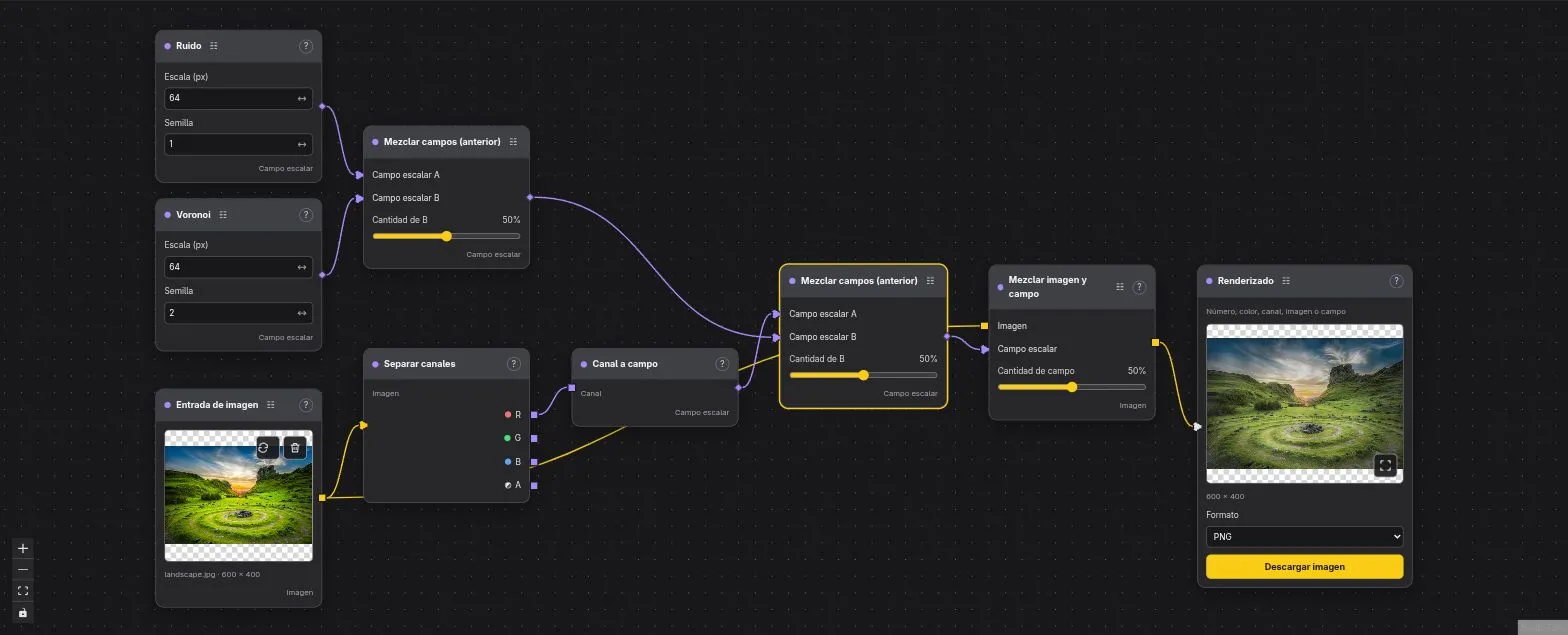
Start with a template, adjust the controls, and explore the graph.
Open Image Graph